
A practical revision workflow for a QR code that is already on signs, packaging, or printed handouts.
Confirm what the printed code opens
Scan a copy of the code already in circulation. Check that its destination belongs to the PDFQR setup you intend to edit. This matters when you manage similar codes for different locations, events, or product models.
A dynamic workflow can change the content behind its existing destination. It cannot rewrite an unrelated static QR code printed earlier with a different URL. Begin by identifying the actual link rather than assuming all versions of a sign use the same code.
Prepare the revised file
Edit the document in your normal source-document or PDF software, then export it. Open the exported PDF and check every page, any links, and important details such as prices or model numbers. Keep the earlier approved version in your own records.
Do not rely on the filename alone to distinguish revisions. Include suitable version or date information within the document when your workflow needs it. Confirm that the new file applies to everyone who may still scan the existing code.
Update the existing QR setup
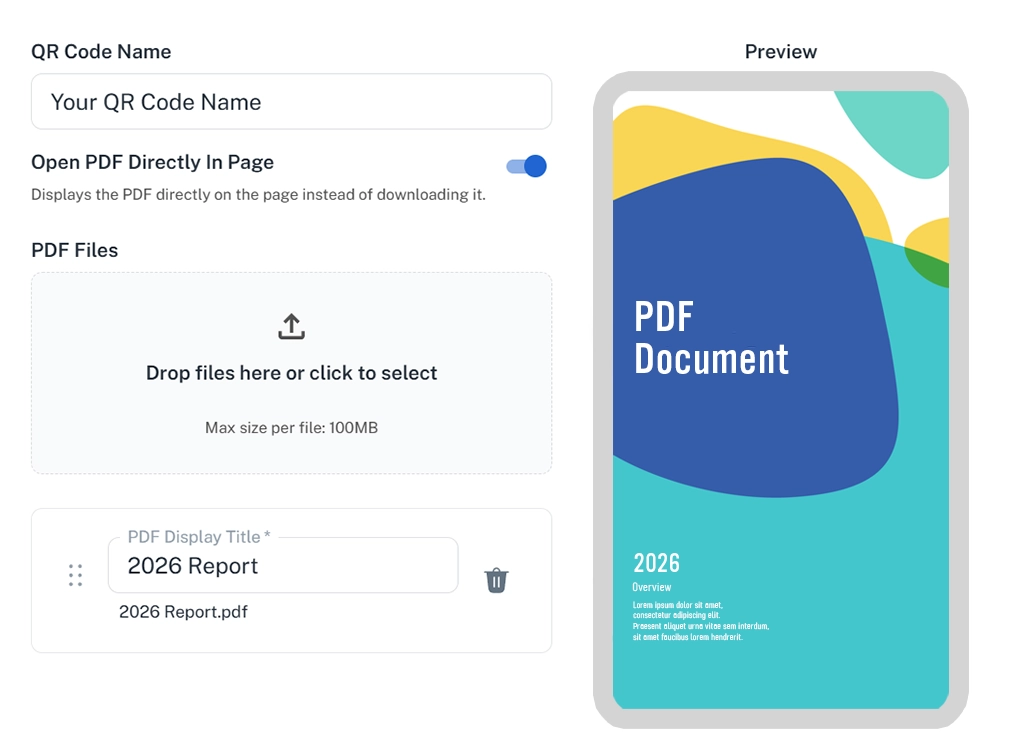
Open that code’s document controls in PDFQR and update the intended PDF. In a multi-file collection, check the display title and neighboring files so you do not replace the wrong item. Keep the existing QR record.
If the reader-facing title needs to change, update it too. Reorder the collection only when the new order is clearer. Avoid broad reorganizations during a small correction unless the collection actually needs them.
Put the guide into practice
Create your document setup, preview it, and test the code before sharing it.
Verify outside the dashboard
Open the public page and scan the original print. Check that the revised PDF appears, its pages are complete, and the rest of the collection remains correct. If a browser appears to show older content, reload and cross-check on another device.
For important instructions, have another person confirm the revision against the approved source. This is a content check as much as a technical check; a file can load correctly and still contain the wrong information.
Consider people with older copies
Updating the hosted PDF does not change copies someone already downloaded or printed. If a correction is important enough to require notification, use your normal communication channel rather than assuming readers will rescan.
Similarly, the wording surrounding the physical QR code stays as printed. If that wording promises a specific edition or event date, silently redirecting the experience to an unrelated collection may confuse readers.
Record and review the change
Maintain whatever internal revision record your organization uses. A QR sharing platform should fit that process, not replace it. Keep backup copies of files and a record of which physical placements use each code.
Periodically scan deployed codes and check the documents behind them. The point of an editable destination is useful continuity, and continuity requires someone to own the ongoing content.
Questions to check before you finish
Can I replace a PDF after printing?
Yes. Update the document within the existing PDFQR code. The QR code stays the same, so your printed materials can keep pointing to the updated content.
Can I download a QR code for print?
Yes. Download high-resolution PNG or SVG files. Preserve the blank margin around the code and test an actual print before ordering a full batch.
Continue learning
PDFQR features · Multiple PDFs in one QR code · Pricing
Sources and review
Product workflow: PDFQR features and product FAQ. Examples in this guide are illustrative. Check the current app before following interface-specific instructions.