
Check contrast, margins, artwork format, placement, and real-world scanning before ordering a print run.
Start with the final destination
Generate the code for the actual document setup you plan to maintain. Scan it and confirm the correct page opens. Printing an attractive code for a temporary or incorrect destination creates a content problem that better print quality cannot fix.
Write a useful label beside the code, such as “Open the venue map” or “View the product manual.” If possible, provide a text link or another way to reach the material. The reader should know what to expect before scanning.
Preserve the blank border
DENSO WAVE’s QR guidance specifies a clear margin of four modules around a conventional QR code. A module is one small square in the pattern. Keep other graphics and text out of that area.
Do not crop the white space because it appears unused in your layout. Frames and logos also need careful testing. Decorative changes should never be judged only from how they look on a large monitor.
Use clean, high-contrast artwork
A dark code on a light, plain background is a sensible starting point. Avoid stretching the square, adding blur, or placing it over a busy image. Check that the print process preserves the distinction between the pattern and its background.
SVG is useful when the layout tool supports vector artwork and the code will be resized. PNG is useful for tools that expect an image, but it must have enough resolution at the intended print size. Enlarging a small raster image does not create missing detail.
Put the guide into practice
Create your document setup, preview it, and test the code before sharing it.
Choose size by testing the situation
There is no single print size that guarantees scanning in every situation. The encoded data, viewing distance, camera, lighting, surface, and print quality all matter. A handheld card and a wall sign are different scanning tasks.
Print a proof at the actual size. Approach it from the distance a reader will use and test more than one phone where practical. If the code is difficult to acquire, increase its size or improve the placement rather than relying on repeated close-up attempts.
Test the material and placement
Gloss coatings and plastic sleeves can cause reflections. Curved labels, folds, seams, and textured materials can distort the code. Test the proof after it is applied to the final surface, not only while lying flat on a desk.
Check under the lighting expected in use. A restaurant table, outdoor sign, and projected slide pose different conditions. Keep the code somewhere readers can safely pause and point a camera.
Approve the complete experience
The final check should include loading the document over a realistic connection, reading the PDF on a phone, and confirming that no unexpected access barrier appears. A successful camera scan is only the first part of the experience.
Keep a sample from the print run and a record of which QR setup it uses. After future document updates, scan that sample again. For model-specific instructions or important references, include the content owner in this approval process.
Questions to check before you finish
Can I replace a PDF after printing?
Yes. Update the document within the existing PDFQR code. The QR code stays the same, so your printed materials can keep pointing to the updated content.
Can I download a QR code for print?
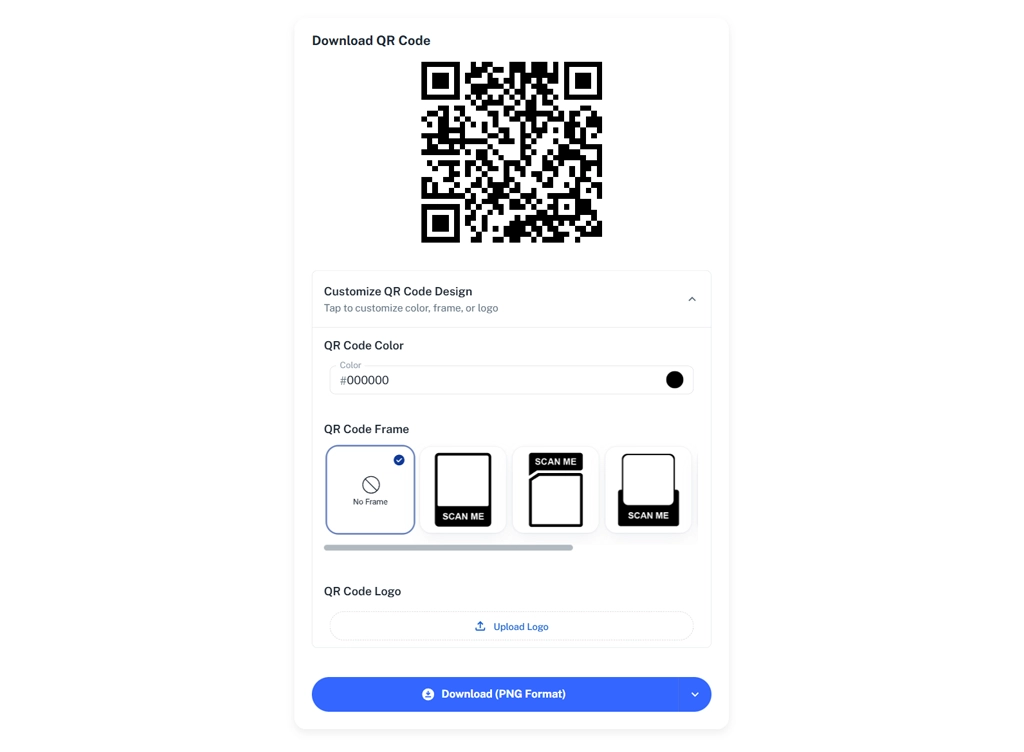
Yes. Download high-resolution PNG or SVG files. Preserve the blank margin around the code and test an actual print before ordering a full batch.
Continue learning
PDFQR features · Multiple PDFs in one QR code · Pricing
Sources and review
Product workflow: PDFQR features and product FAQ. Examples in this guide are illustrative. Check the current app before following interface-specific instructions.
Technical reference: DENSO WAVE guidance on QR code area and margins.