
A complete workflow for preparing a PDF, choosing a viewing mode, creating the code, and checking the result.
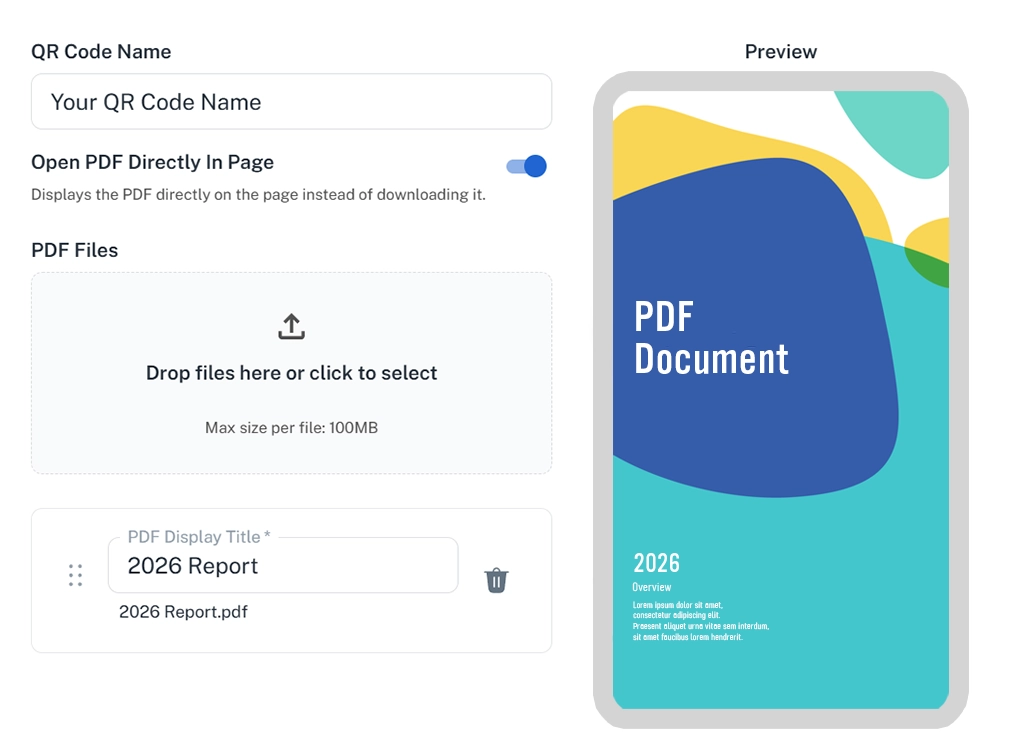
Start with the file your audience needs
A PDF QR code normally contains an address that opens a hosted document or document page. It does not pack the PDF itself into the printed pattern. Before creating the code, decide what the reader should see after scanning: one document immediately, or a list of related documents.
Open your PDF outside the editor that created it. Check that fonts, images, links, and page order survived the export. Look for internal comments, draft wording, outdated contact details, or information that is not intended for this audience. Keep a copy of the approved file in your own records.
Upload and choose the viewing experience
In PDFQR, upload your PDF to a QR setup. Direct View is useful when there is one obvious document to read, such as a brochure or a short menu. List View is useful for a pack containing several PDFs, such as a schedule, venue map, and program.
Each PDF can be up to 100MB, but the upload allowance should not be your target file size. Compress oversized images and export a reasonable file for mobile use. Test on a normal mobile connection, not only on a fast office network.
Name and brand the page
Choose a page title that confirms the destination: the name of the event, menu, product, or document collection. Add a subtitle only if it explains something useful. A recognizable header image and a consistent theme color can help readers identify the source.
For a collection, replace internal filenames with display titles people understand. Order the files by likely use. A document named “Venue map” is easier to choose than one named after an internal design revision.
Put the guide into practice
Create your document setup, preview it, and test the code before sharing it.
Download the QR artwork
PDFQR offers PNG and SVG downloads, along with QR color, logo, and frame controls. Use a dark code on a light background as a straightforward starting point. Do not let decorative styling make the small pattern harder to distinguish.
Choose the format your layout tool or printer handles correctly. Preserve the square aspect ratio and the blank margin around the code. A code that looks attractive in a large preview still needs to be tested at its actual final size.
Test the full journey
Scan the downloaded code with more than one phone if possible. Confirm that the page opens without an unexpected login, the correct document appears, and the PDF is readable. Test the physical print as well as the image on screen.
Add a clear label beside the code so people know what it opens. Where practical, provide the shared URL or another route to the material. A person without a compatible camera or reliable connection should not be left guessing.
Maintain the same destination
For future revisions, update the PDF within the existing QR setup. Then scan an older print to check the result. Creating a new QR record produces a different entry point and will not magically change what an old printed code contains.
Keep an owner for the document and a sensible review routine. Check the PDF’s own dates and links as well as the QR destination. A working link to an outdated document is still an outdated experience.
Questions to check before you finish
Can I replace a PDF after printing?
Yes. Update the document within the existing PDFQR code. The QR code stays the same, so your printed materials can keep pointing to the updated content.
Can I download a QR code for print?
Yes. Download high-resolution PNG or SVG files. Preserve the blank margin around the code and test an actual print before ordering a full batch.
Continue learning
PDFQR features · Multiple PDFs in one QR code · Pricing
Sources and review
Product workflow: PDFQR features and product FAQ. Examples in this guide are illustrative. Check the current app before following interface-specific instructions.