
Organize a useful document collection with List View, clear file names, and a maintenance plan.
Define the collection before uploading
One QR code is useful when it leads to a coherent set of choices. An event pack can contain a schedule, map, and program. A product pack can contain a quick-start guide, full manual, and care instructions. The relationship between those documents should be obvious to the reader.
Avoid treating the page as an archive of everything you have ever uploaded. If the audience, product version, or purpose differs substantially, separate collections may make the experience clearer.
Add the files to the same QR setup
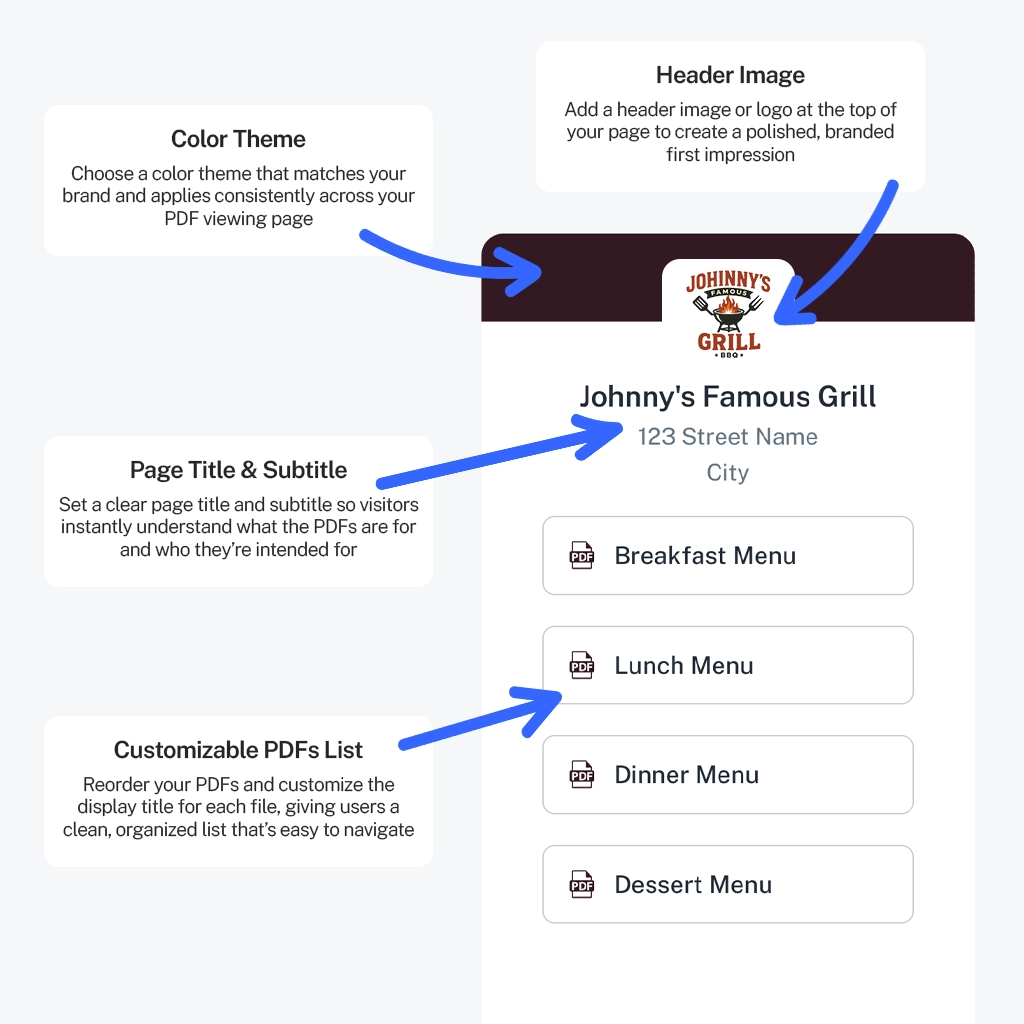
Upload the related PDFs inside one PDFQR code and select List View. This presents a document list rather than opening just one PDF directly. Give the page a title that identifies the whole collection, not only its first file.
Each file may be up to 100MB. For comfortable mobile use, consider splitting a large catalog into genuinely useful sections and compressing unnecessary image weight. More files are not automatically easier to navigate; the structure still needs to make sense.
Use display titles as navigation
Write titles that answer “Which file do I need?” Distinguish documents by task, language, model, or date when those differences matter. Keep the language consistent across the set.
Do not make users decipher internal export names. If version information is important, put an appropriate revision identifier inside the PDF as well as any useful display label. An attractive title does not replace proper document version control.
Put the guide into practice
Create your document setup, preview it, and test the code before sharing it.
Order the documents intentionally
Put the first task first. An attendee may need the schedule before the program. A new user may need a quick-start guide before a lengthy reference manual. Reorder the list as the audience’s needs change.
Preview the page on a phone and check that the first few choices communicate the structure. If several files have almost identical names, a reader may open the wrong one even when every link works.
Update and remove files carefully
Make revisions within the same QR setup so the printed code remains the entrance to the collection. After adding or replacing a file, open it from the public page and confirm that you changed the intended document.
Deleting a file removes access to it from the collection. Keep any required archive separately. Before removing an older manual, check whether products or printed instructions still in circulation depend on that version.
Keep access expectations realistic
A public QR link can be copied or forwarded. Do not mix confidential files into a collection and assume that an unguessable URL or an obscure title makes them private. Use an appropriate controlled sharing system for restricted documents.
Test the code on its final sign or handout. Check not only that the page loads, but that a new reader can identify the right PDF without an explanation from you.
Questions to check before you finish
Can I replace a PDF after printing?
Yes. Update the document within the existing PDFQR code. The QR code stays the same, so your printed materials can keep pointing to the updated content.
Can I download a QR code for print?
Yes. Download high-resolution PNG or SVG files. Preserve the blank margin around the code and test an actual print before ordering a full batch.
Continue learning
PDFQR features · Multiple PDFs in one QR code · Pricing
Sources and review
Product workflow: PDFQR features and product FAQ. Examples in this guide are illustrative. Check the current app before following interface-specific instructions.